-
Type:
Task
-
Resolution: Done
-
Priority:
 Normal
-
Component/s: Wiki
-
None
Since login/sign up to Wiki currently doesn't work (OTHER-463), please make the following changes to this page: https://wiki.musicbrainz.org/Indexed_Search_Syntax
From:
===Wildcards===

To perform a single character wildcard search use the "?" symbol. To perform a multiple character wildcard search use the "*" symbol. For example, to search for "text" or "test" you can use the search '''te?t''', to search for "test", "tests" or "tester", you can use the search '''test*'''.

''Note: You cannot use a * or ? symbol as the first character of a search.''

===Fuzzy searches===

To do a fuzzy search use the tilde, "~", symbol at the end of a single word term. Optionally can specify the required similarity, a value is between 0 and 1. For example to search for a term similar in spelling to "roam" use the fuzzy search '''roam~''' or '''roam~0.8'''

===Regular expressions===

You can use regular expressions in your searches. For that you should put the expression between forward slashes (/regex/). Regular expression search generally searches only inside each token (word), so you cannot search for combinations of words as a regular expression. For an example, to find releases credited to either of the two common transliterations of Сергей Рахманинов, "Rachmaninov" and "Rachmaninoff", you can pass artist:/Rachmanino(ff|v)/ to the release search.
To:
===Wildcards===

To perform a single character wildcard search use the "?" symbol. To perform a multiple character wildcard search use the "*" symbol. For example, to search for "text" or "test" you can use the search '''te?t''', to search for "test", "tests" or "tester", you can use the search '''test*'''.

''Note: You cannot use a * or ? symbol as the first character of a search.''

===Fuzzy searches===

To do a fuzzy search use the tilde, "~", symbol at the end of a single word term. Optionally can specify the required similarity, a value is between 0 and 1. For example to search for a term similar in spelling to "roam" use the fuzzy search '''roam~''' or '''roam~0.8'''

===Regular expressions===

You can use regular expressions in your searches. For that you should put the expression between forward slashes (/regex/). Regular expression search generally searches only inside each token (word), so you cannot search for combinations of words as a regular expression. For an example, to find releases credited to either of the two common transliterations of Сергей Рахманинов, "Rachmaninov" and "Rachmaninoff", you can pass artist:/Rachmanino(ff|v)/ to the release search.

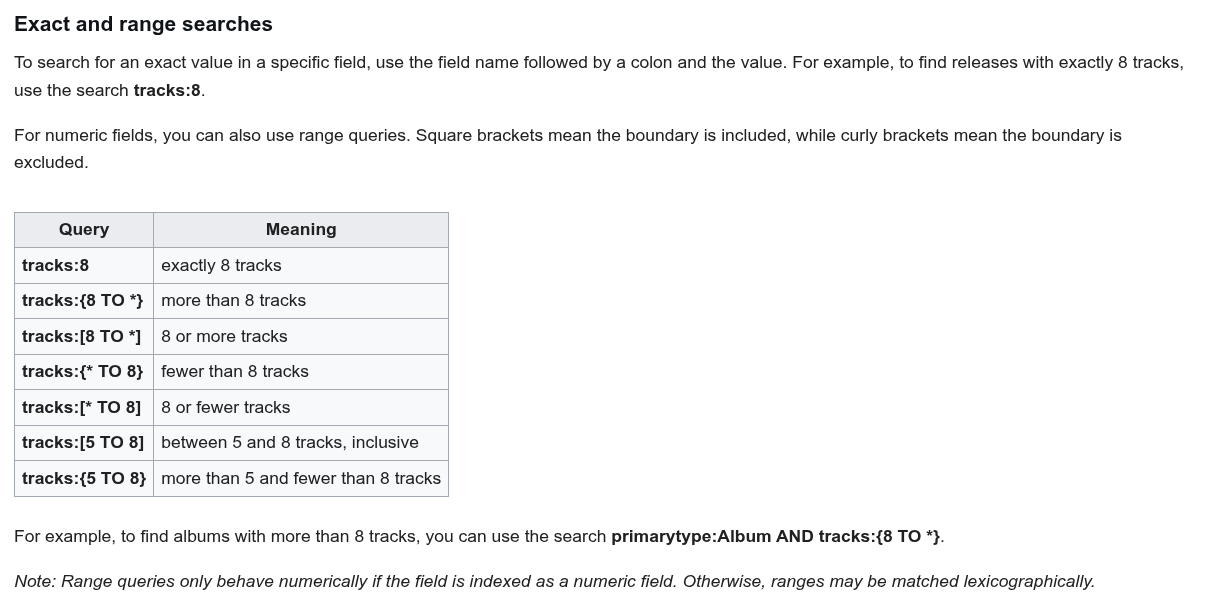
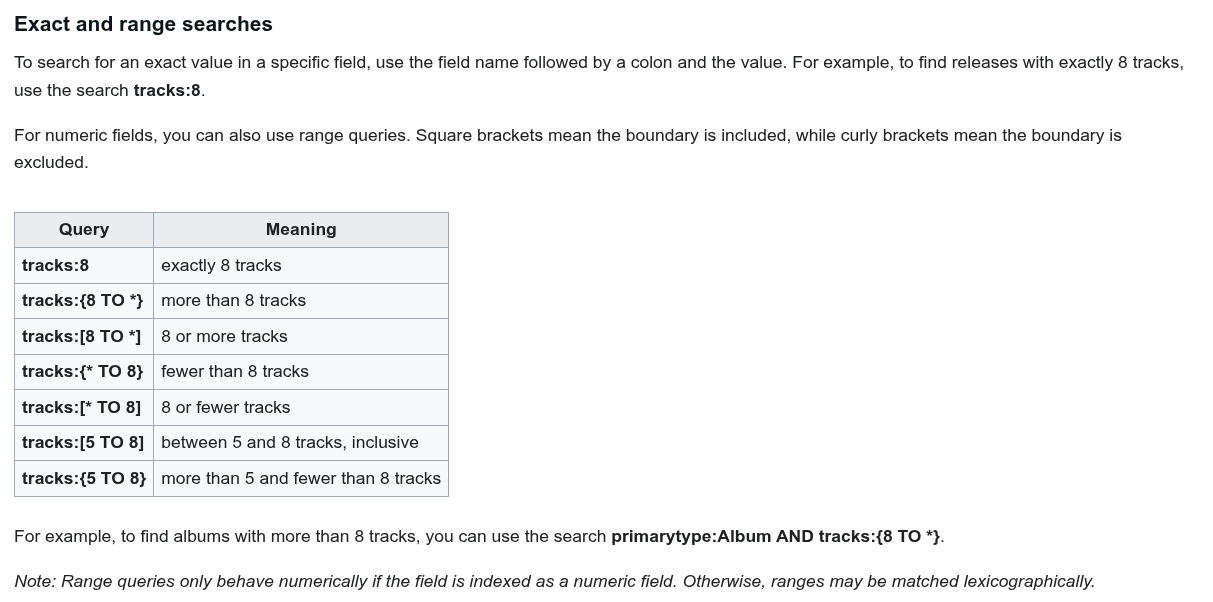
===Exact and range searches===

To search for an exact value in a specific field, use the field name followed by a colon and the value. For example, to find releases with exactly 8 tracks, use the search '''tracks:8'''.

For numeric fields, you can also use range queries. Square brackets mean the boundary is included, while curly brackets mean the boundary is excluded.

{| class="wikitable"
! Query
! Meaning
|-
| '''tracks:8'''
| exactly 8 tracks
|-
| '''tracks:{8 TO *}'''
| more than 8 tracks
|-
| '''tracks:[8 TO *]'''
| 8 or more tracks
|-
| '''tracks:{* TO 8}'''
| fewer than 8 tracks
|-
| '''tracks:[* TO 8]'''
| 8 or fewer tracks
|-
| '''tracks:[5 TO 8]'''
| between 5 and 8 tracks, inclusive
|-
| '''tracks:{5 TO 8}'''
| more than 5 and fewer than 8 tracks
|}

For example, to find albums with more than 8 tracks, you can use the search '''primarytype:Album AND tracks:{8 TO *}'''.

''Note: Range queries only behave numerically if the field is indexed as a numeric field. Otherwise, ranges may be matched lexicographically.''
The new part starts after `===Exact and range searches===`, this is a section with examples on range matching. It took me quite a while to figure out so it would be good if everyone can benefit from it too.
It will be rendered like so: